
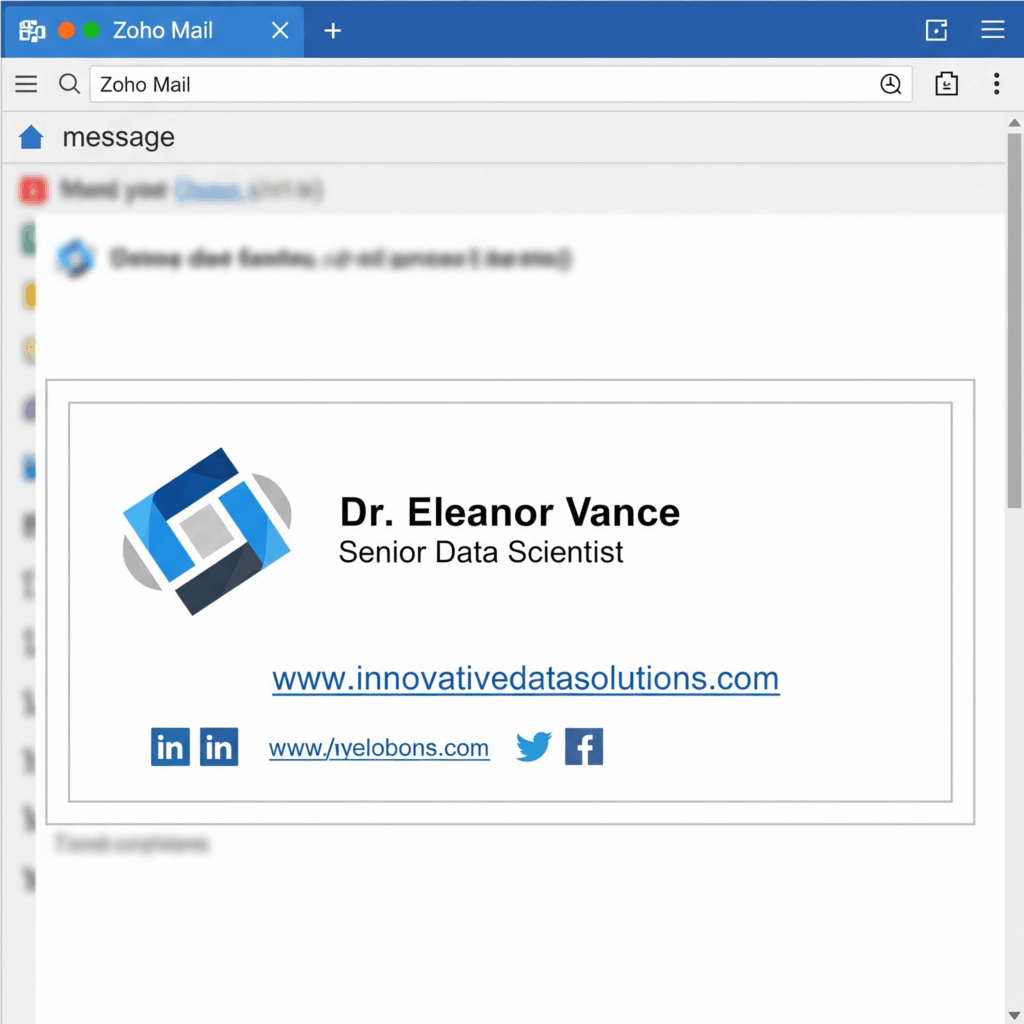
Your email signature is more than just contact details — it’s your digital business card. A professional email signature is essential for every business and individual. It enhances credibility, reinforces your brand, and provides essential contact information. Zoho Mail makes it easy to create customized signatures, complete with your name, title, company logo, website, and social media links.
Follow these steps to set up your signature.
Step 1: Log in to Zoho Mail
Start by logging in to your Zoho Mail account. If you are new to the platform, refer to our guide on getting started with Zoho Mail to learn about account setup, folder organization, and basic navigation.
Step 2: Navigate to Signature Settings
Click on the Settings icon in the top-right corner and select Mail Settings, then Signatures. Here, you can create and manage multiple signatures for different purposes. For more on customizing your inbox, see personalizing your Zoho Mail interface.
Step 3: Create Your Signature
Click + New Signature and enter a name for your signature. Add the following details:
- Full name and designation
- Company name and logo
- Phone number and professional email
- Website URL
- Relevant social media links
For tips on crafting a polished signature, check out email signature best practices. Remember to keep it clean and professional.
Step 4: Set Signature Preferences
Decide when the signature should appear – in new emails, replies, or forwards. You can also assign different signatures to multiple accounts. Learn more about managing multiple email accounts in Zoho Mail.
Step 5: Save and Test Your Signature
Click Save and compose a test email to ensure formatting, images, and links appear correctly. For guidance on writing professional emails, see professional email etiquette.
Tips for an Effective Email Signature
- Keep it concise: 3 – 6 lines is ideal.
- Include essential details only: Avoid unnecessary information.
- Brand consistently: Use your company logo and colors.
- Use professional fonts and formatting: Ensure readability.
- Include relevant social links: Only add channels that enhance your professional image.
Why a Professional Signature Matters
A professional signature enhances credibility, improves communication, and can subtly promote your brand. For more ways to optimize your inbox and workflow, explore boosting email productivity with Zoho Mail. By following these steps, you can create a Zoho Mail email signature that looks professional, promotes your brand, and ensures every email you send makes the right impression.
Check out our guide on Zoho Mail vs. G Suite to better align your business communication.


