
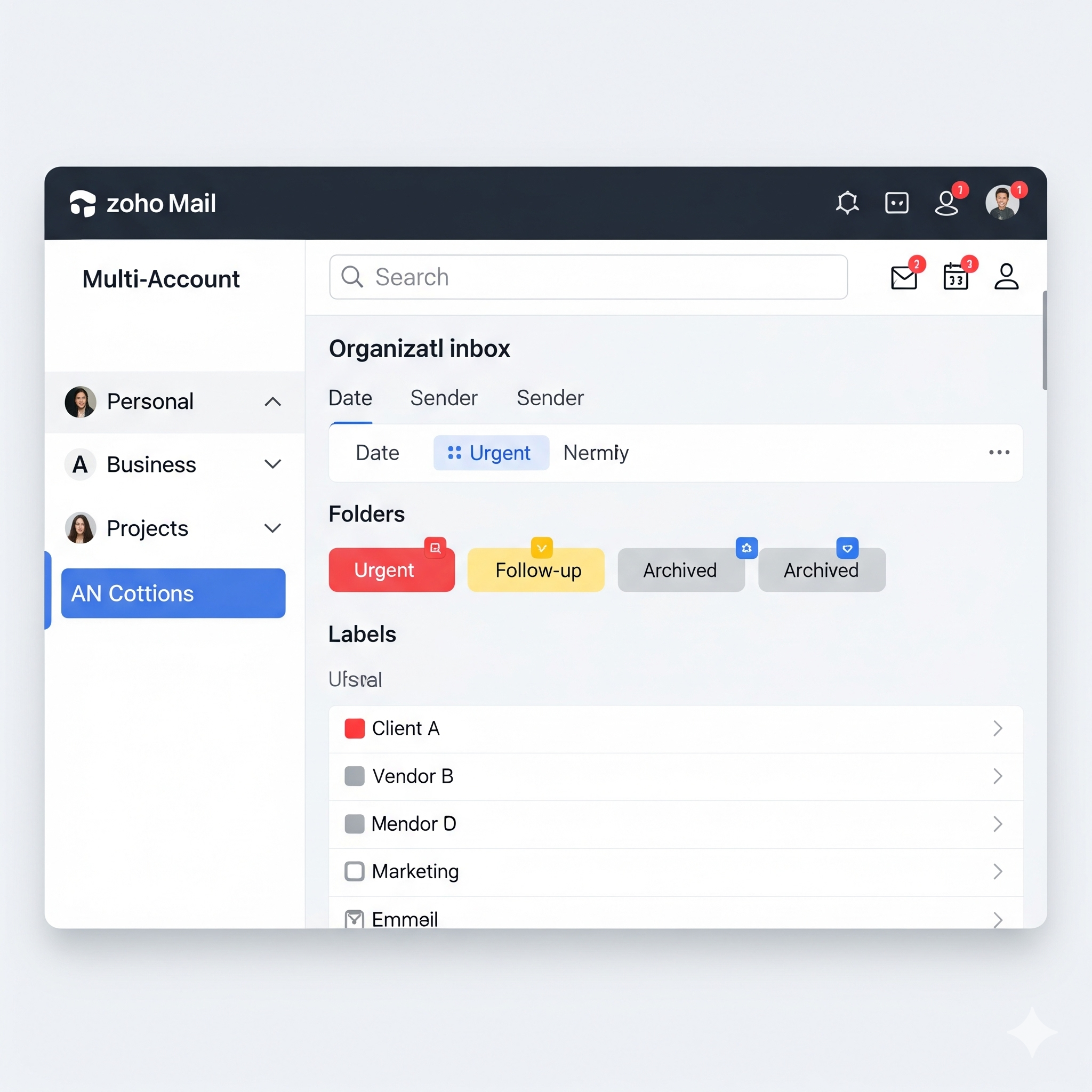
Managing multiple email accounts zoho mail can be overwhelming, especially when juggling personal, business, and project-specific emails. Zoho Mail offers a streamlined solution by allowing users to manage multiple email accounts zoho mail within a single interface, ensuring efficiency, organization, and professional communication. This guide explains how to set up Zoho Mail, manage multiple accounts, and optimize your email experience.
How to Manage Multiple Email Accounts in Zoho Mail
Handling multiple email accounts separately can lead to missed messages, delayed responses, and decreased productivity. Zoho Mail solves this by:
- Centralizing Email Management – Access all your accounts in one interface.
- Saving Time – Quickly switch between accounts without logging in and out.
- Maintaining Professionalism – Respond promptly to clients, colleagues, or personal contacts.
For tips on improving inbox efficiency, see our guide on boosting email productivity with Zoho Mail.
Step 1: Adding a New Account in Zoho Mail
Zoho Mail allows you to add multiple accounts, including external accounts such as Gmail or Outlook, using IMAP or POP protocols. Setting up your accounts is easy and provides seamless access to all your emails.
- Log in to your Zoho Mail account.
- Click on your profile picture in the top-right corner.
- Select Add Account.
- Choose whether to add a Zoho Mail account or an external email account.
- Enter your email credentials and follow the verification steps.
Once added, all emails from the new account will appear in your Zoho Mail inbox.
Step 2: Switching Between Accounts in Zoho Mail
Switching between multiple accounts is seamless in Zoho Mail:
- Click on your profile picture.
- Select the account you want to access from the dropdown menu.
- Your inbox will update automatically to show emails from the selected account.
This eliminates the need for multiple browser tabs or constant logins, keeping your workflow smooth and organized.
Step 3: Managing Folders and Labels Across Accounts in Zoho Mail
Each account in Zoho Mail allows you to create folders and labels to organize emails effectively:
- Folders: Create separate folders for each account to categorize emails.
- Labels: Apply color-coded labels for projects, clients, or priorities.
- Filters: Set rules to automatically sort emails into folders or apply labels upon arrival.
For more guidance on organizing your inbox, check out Personalizing Your Zoho Mail Interface.
Step 4: Configuring Signatures for Multiple Accounts in Zoho Mail
If you manage several accounts, each account can have its own professional signature. For instance, the Zoho Mail premium version provides additional customization options for signatures.
- Navigate to Settings > Mail Settings > Signatures.
- Create a new signature for each account.
- Assign signatures to appear automatically in new emails, replies, or forwards.
Using tailored signatures ensures professional and consistent communication across all accounts, whether it’s your personal or Zoho Mail business account.
Step 5: Setting Account Priorities and Notifications in Zoho Mail
Zoho Mail allows you to prioritize notifications based on the importance of each account:
- Enable notifications only for high-priority accounts to reduce distractions.
- Use mobile and desktop alerts selectively for personal vs. business emails.
- Assign VIP labels for contacts whose emails should be highlighted.
This ensures you never miss critical messages while minimizing unnecessary interruptions.
Step 6: Using Unified Search in Zoho Mail
Zoho Mail’s Unified Search allows you to search across all linked accounts simultaneously:
- Enter a keyword or sender name in the search bar.
- Select All Accounts to get comprehensive results.
- Use filters to refine your search by date, attachments, or account.
Unified search saves time and ensures you can locate important emails quickly, whether in your Zoho Mail inbox or an external account.
Step 7: Security Considerations for Managing Multiple Accounts in Zoho Mail
Managing multiple accounts requires maintaining security across all platforms. Zoho Mail helps you ensure the safety of your communications:
- Use two-factor authentication (2FA) for each account.
- Ensure external accounts use secure IMAP/POP settings.
- Regularly review account activity for suspicious logins.
Benefits of Managing Multiple Accounts in Zoho Mail
- Efficiency – Centralized access reduces time spent switching between accounts.
- Organization – Separate folders, labels, and filters keep emails structured.
- Professional Communication – Custom signatures and priority notifications enhance credibility.
- Flexibility – Supports Zoho accounts and external accounts seamlessly.
Why Choose Al Fahad for Zoho Mail Implementation
Al Fahad IT Consulting is a Premium Zoho Partner with 10+ years of expertise, delivering seamless Zoho Mail implementation across the UAE, KSA, and Bahrain. Our certified Zoho Consultation specialists have successfully served top industries, including real estate, healthcare, shipping, the service industry, and construction.
Why businesses trust us:
- Decade of Zoho mastery ensuring reliable, tailored deployments.
- Dedicated experts for implementation, integration, and 24/7 support.
- Regional insight for fast, compliant, and efficient setups.
- Personalized solutions aligning Zoho Mail with your workflow and brand.
Choose Al Fahad IT Consulting for a streamlined, high-impact Zoho Mail experience that boosts productivity and simplifies collaboration.
Conclusion
Managing multiple email accounts in Zoho Mail can significantly improve your productivity and communication efficiency. Whether you’re handling personal, business, or project-specific emails, Zoho Mail centralizes everything into a single interface, saving you time and ensuring a professional email experience. The benefits are clear: Maximum Efficiency, Perfect Organization, and Enhanced Professionalism.
For any questions about Zoho Mail, whether it’s setting up your account, understanding Zoho Mail charges, or configuring your Zoho Mail settings, contact Al Fahad IT Consulting. For more information, check out our guide: Zoho Mail vs. G Suite.


