
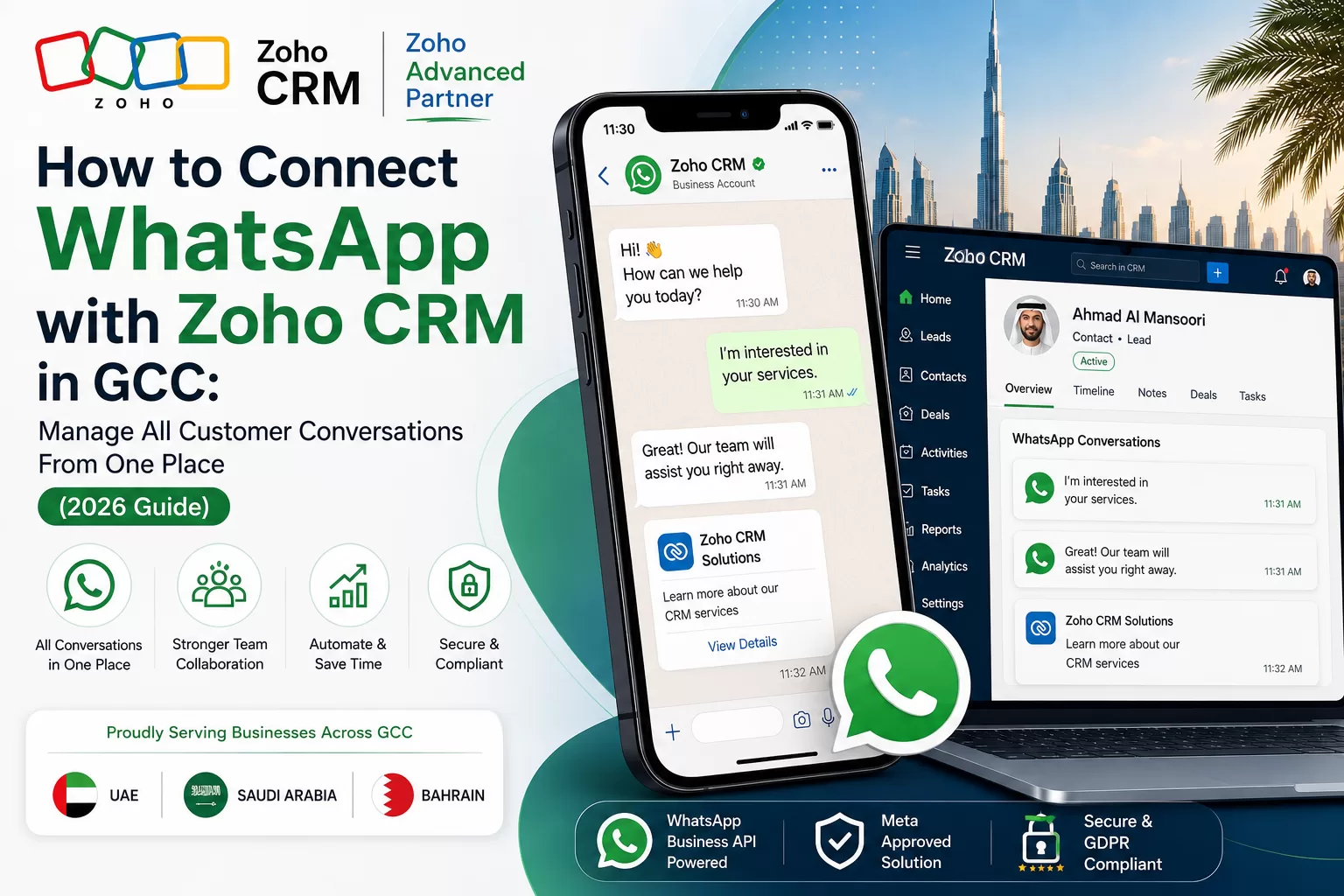
Your customers in Dubai, Riyadh, and Manama are not waiting for your email reply — they are messaging you on WhatsApp. Across the GCC, WhatsApp is no longer a side channel for customer service; it is the first place buyers ask about pricing, delivery, and support. Yet in most companies, those conversations live on a sales rep’s personal phone, disconnected from the CRM, with no record for the next agent, no automation, and no visibility for the manager.
A Zoho CRM WhatsApp integration fixes exactly that problem. Once WhatsApp is connected to Zoho CRM, every inbound message, every reply, and every media file a customer sends becomes part of that contact’s record — visible to the whole team, searchable, and tied into the same pipelines, workflows, and automations that already run your sales and support process.
This guide walks through how to connect WhatsApp with Zoho CRM in a GCC business context — the official Zoho route, the WhatsApp Business API options available to UAE, Saudi, and Bahrain companies, the step-by-step setup, and the compliance details Meta and local regulators expect you to get right the first time.
WhatsApp + Zoho CRM at a Glance: The Key Facts Every GCC Business Should Know
| Key Detail | What It Means |
| Integration Purpose | Send, receive, and log WhatsApp messages directly inside Zoho CRM contact and lead records |
| Native Zoho Option | Business Messaging (WhatsApp channel) under Zoho CRM Settings → Channels |
| WhatsApp Account Required | A verified WhatsApp Business Account (WABA) connected through Meta |
| Common Setup Routes | Native Zoho channel, approved BSP partner extension (Marketplace), or Zapier/automation bridge |
| Where Messages Appear | SalesInbox, the Contact/Lead timeline, and as logged Activities |
| Message Types Supported | Text, template messages, images, PDFs, product catalogues, and quick replies |
| GCC Relevance | High WhatsApp adoption across UAE, Saudi Arabia, and Bahrain; Arabic + English messaging support |
| Compliance Consideration | Meta Business Verification, opt-in consent, and approved message templates for outbound/marketing use |
Note: The exact setup screens vary slightly depending on whether you use Zoho’s native Business Messaging channel or a third-party WhatsApp Business API partner. Businesses should confirm the current Zoho CRM edition requirements directly with Zoho or a certified implementation partner before starting.
Why GCC Businesses Are Moving Customer Conversations to WhatsApp
WhatsApp Usage Across the UAE, Saudi Arabia, and Bahrain
WhatsApp is effectively the default communication channel across the Gulf. Customers in Dubai, Abu Dhabi, Riyadh, Jeddah, Dammam, and Manama expect to message a business the same way they message friends and family — a short text, a voice note, a photo of a product, or a location pin. Open rates on WhatsApp sit far above email, and replies typically arrive within minutes rather than hours. For a WhatsApp CRM GCC strategy to work, that channel needs to feed directly into the same system your sales and support teams already use — otherwise it becomes another silo instead of a shortcut.
The Cost of Managing WhatsApp Outside Your CRM
Without an integration, WhatsApp conversations sit on individual phones or WhatsApp Web sessions. That creates real business risk: a resigning sales rep can walk out with months of customer chat history; managers cannot see response times or missed messages; support cannot see what sales already promised a customer; and marketing has no way to trigger a WhatsApp follow-up when a deal stage changes. Connecting WhatsApp to Zoho CRM turns those informal chats into structured, ownable business data.
- No lead record when a new customer messages you cold on WhatsApp
- No shared history when a customer is handed from sales to support
- No automation — every follow-up message has to be typed and sent manually
- No reporting — you cannot measure WhatsApp response time or conversion
- No continuity if the employee handling that WhatsApp number leaves the company
How Zoho CRM WhatsApp Integration Actually Works
There are three practical ways a GCC business can connect WhatsApp with Zoho CRM in 2026. Which one fits depends on your Zoho CRM edition, your message volume, and whether you need marketing broadcasts in addition to one-to-one conversations.
Option 1: Zoho CRM’s Native Business Messaging Channel
Zoho CRM includes a built-in Business Messaging option under Settings → Channels → WhatsApp. An admin connects a verified WhatsApp Business Account, and once approved, inbound messages from CRM contacts appear directly in SalesInbox and are logged as activities on the relevant contact or lead record. Outbound messages sent from inside a record’s timeline are delivered to the customer’s WhatsApp chat. This is the tightest integration available — messages behave as first-class CRM activities, with the same logging quality as an email or a call log.
Option 2: Approved WhatsApp Business API Partners via Zoho Marketplace
For businesses that need higher message volume, broadcast campaigns, or advanced chatbot flows, a number of approved Business Solution Providers (BSPs) list connector extensions on the Zoho Marketplace. These partner apps typically add live-chat widgets inside CRM modules, bulk template messaging, and reporting dashboards, layered on top of the official WhatsApp Business API. This route usually requires a paid Zoho CRM plan and a separate subscription with the messaging partner.
Option 3: Automation Bridge (Zapier or Similar)
Where a business already runs WhatsApp through Meta’s Cloud API directly, a middle path is to connect the two systems using an automation tool. A trigger such as a new WhatsApp message creates or updates a Zoho CRM lead, while a Zoho CRM trigger — a new lead or a deal stage change — fires an outbound WhatsApp message. This route is faster to set up but keeps the two systems only loosely connected, which is worth knowing before you commit to it as a long-term architecture.
Step-by-Step: How to Connect WhatsApp with Zoho CRM
Step 1 — Get a Verified WhatsApp Business Account
Before any integration can begin, you need a WhatsApp Business Account (WABA) linked to a Meta Business Manager account, using a phone number that has never been active on regular WhatsApp or WhatsApp Business app. This number becomes the single official channel your CRM connects to — so it should be a company number, not a personal one.
Step 2 — Choose Your Integration Route
Decide between the native Zoho Business Messaging channel, a Marketplace BSP extension, or an automation bridge, based on your expected message volume, whether you need marketing broadcasts, and your current Zoho CRM edition. Most GCC SMBs handling one-to-one sales and support conversations do well on the native channel; businesses running WhatsApp broadcast campaigns typically need a BSP partner.
Step 3 — Connect and Authorise the Channel Inside Zoho CRM
For the native route, an admin opens Zoho CRM → Setup → Channels → WhatsApp, starts the connection wizard, and authorises the linked WhatsApp Business Account. For a Marketplace extension, the connector is installed from the Zoho Marketplace, then authorised against both the Zoho CRM account and the messaging partner’s dashboard.
Step 4 — Map Contacts, Leads, and Phone Number Fields
The integration matches incoming WhatsApp numbers against the mobile or phone field already stored on your Contact, Lead, and Deal modules. Numbers need to be stored in a consistent international format (with country code) so a message from an existing customer attaches to their record instead of creating a duplicate. This is the step most GCC teams get wrong when migrating from a spreadsheet-based contact list.
Step 5 — Set Up Message Templates and Automation
Meta requires any WhatsApp message sent outside a customer-initiated 24-hour conversation window to use a pre-approved template. Inside Zoho CRM, these templates can be attached to workflow rules — for example, an automatic WhatsApp confirmation the moment a deal moves to “Won”, or a reminder template triggered a day before an appointment.
Step 6 — Test, Train the Team, and Go Live
Run a small pilot with a handful of real contacts before rolling the channel out company-wide. Confirm that inbound messages log correctly against the right record, that outbound templates render properly in both Arabic and English, and that notification routing sends new conversations to the right sales or support queue.
What Your Team Can Do Once WhatsApp Is Connected to Zoho CRM
- Reply to WhatsApp messages directly from the Contact, Lead, or Deal record — no switching apps
- See the full WhatsApp conversation history the moment a customer calls in or emails
- Auto-create a new Lead the moment an unknown number messages your business number
- Trigger workflow-based WhatsApp confirmations for orders, appointments, and payment reminders
- Share product images, PDFs, quotations, and catalogues directly through the chat window
- Route incoming conversations to the right sales or support agent automatically
- Report on WhatsApp response time, message volume, and conversion alongside email and call metrics
- Hand a customer between sales and support without losing any conversation history
WhatsApp + Zoho CRM Compliance for UAE, Saudi Arabia, and Bahrain
Meta Business Verification
Meta requires Business Manager verification before a WhatsApp Business Account can send template messages at scale. GCC companies should register with their official trade licence details and a business email on the same domain as their website, since mismatched details are the most common reason verification is delayed.
Consent and Template Approval
Outbound marketing-style messages — promotions, broadcasts, price updates — must use a Meta-approved template and should only be sent to customers who opted in. Zoho CRM workflows can be configured to only pull marketing WhatsApp sends from contacts flagged with consent, keeping the business aligned with WhatsApp’s commerce policy and general UAE, Saudi, and Bahrain data-protection expectations around unsolicited messaging.
One Number, One Business
A WhatsApp Business number can only be connected to one active integration at a time. If a number is already live on the WhatsApp Business app on someone’s phone, it must be migrated before it can be linked to Zoho CRM — this is a step several GCC businesses miss, which stalls the whole setup.
Common Mistakes GCC Businesses Make When Connecting WhatsApp to Zoho CRM
- Trying to connect a personal or already-active WhatsApp Business number without migrating it first
- Leaving phone number fields in inconsistent formats, so incoming messages create duplicate leads instead of matching existing contacts
- Sending broadcast-style messages without an approved template and getting the number flagged or restricted
- Connecting the channel but never building the workflow automations, so the integration is used only as a chat window instead of a lead engine
- Skipping team training, which means agents keep replying from a personal phone out of habit even after the integration is live
How Al Fahad IT Consulting Helps You Connect WhatsApp to Zoho CRM
Connecting WhatsApp to Zoho CRM correctly is less about clicking “Connect” and more about getting the number verification, field mapping, and automation design right the first time — so the channel becomes part of how your team actually sells and supports customers, not a chat window nobody maintains. Al Fahad IT Consulting is a certified Zoho Premium Partner with offices in Dubai and Dammam, and 10+ years of experience implementing Zoho across the UAE, Saudi Arabia, and Bahrain.
- WhatsApp Business Account Setup: We handle Meta Business verification, number migration, and the connection to Zoho CRM end to end.
- Data Mapping & Deduplication: We clean and standardise your contact database before go-live so messages match the right record.
- Template & Workflow Design: We build your approved message templates and the CRM automations that trigger them.
- Arabic + English Configuration: Full bilingual templates and agent training for teams across the Emirates and the Kingdom.
- Ongoing Support: Post-go-live support to keep templates compliant as Meta and Zoho policies evolve.
Contact our team today for a free consultation on connecting WhatsApp with Zoho CRM for your business — wherever you operate across Dubai, Abu Dhabi, Riyadh, Jeddah, Dammam, or Manama.
Frequently Asked Questions
Q1. Do I need a paid Zoho CRM plan to connect WhatsApp?
In most cases, yes. WhatsApp Business Messaging channels are available on paid Zoho CRM editions, and a verified WhatsApp Business Account through Meta is required regardless of which integration route you choose.
Q2. Can I use my existing personal WhatsApp Business number?
Only after migrating it to the WhatsApp Business API. A number actively logged in on a phone through the regular WhatsApp Business app cannot be connected to Zoho CRM until that migration is complete.
Q3. Will WhatsApp messages show up automatically on the right Contact or Lead?
Yes, provided the phone number stored in Zoho CRM matches the incoming WhatsApp number in a consistent international format. If it doesn’t match an existing record, most setups will auto-create a new Lead instead.
Q4. Can we send WhatsApp broadcasts to our customer list from Zoho CRM?
Yes, but only using Meta-approved templates and only to contacts who have opted in — this typically requires a BSP partner extension rather than the native one-to-one Business Messaging channel.
Q5. Is WhatsApp integration available for Zoho CRM users in Saudi Arabia and Bahrain, not just the UAE?
Yes. The integration is available wherever Zoho CRM and WhatsApp Business are available, which covers UAE, Saudi Arabia, and Bahrain. The setup steps are the same across all three markets; only the Meta Business verification details differ by company registration.
Ready to Manage All Your Customer Conversations From One Place?
A disconnected WhatsApp number is a growing blind spot for any GCC business — every day it runs outside your CRM is a day of customer history, response-time data, and automation opportunity you don’t get back. Connecting WhatsApp to Zoho CRM turns your busiest customer channel into a structured, trackable, team-wide asset instead of a chat log on one person’s phone.
Whether your business is in Dubai, Abu Dhabi, Riyadh, Jeddah, Dammam, or Manama, Al Fahad IT Consulting can connect, configure, and automate your WhatsApp + Zoho CRM setup correctly the first time. Contact our team today for a free, obligation-free consultation.
Disclaimer: This article is for informational purposes only and does not constitute professional business consulting advice. Always evaluate your specific business requirements before making software decisions.
Talk to a Zoho Spend Specialist
Al Fahad IT Consulting is a Zoho Premium Partner with active Zoho Expense and Zoho Spend implementations across UAE, Saudi Arabia, and Bahrain.
We configure spend management workflows aligned to your approval structure, VAT requirements, and operational scale: not a generic template.
Book a free Zoho consultation →
نتحدث العربية. تواصل معنا للحصول على استشارة مجانية في إدارة المصروفات والمشتريات
Al Fahad IT Consulting is a Zoho Premium Partner and Oracle Partner Network member, providing Zoho implementation services across UAE, Saudi Arabia, and Bahrain.


Leave a Reply