
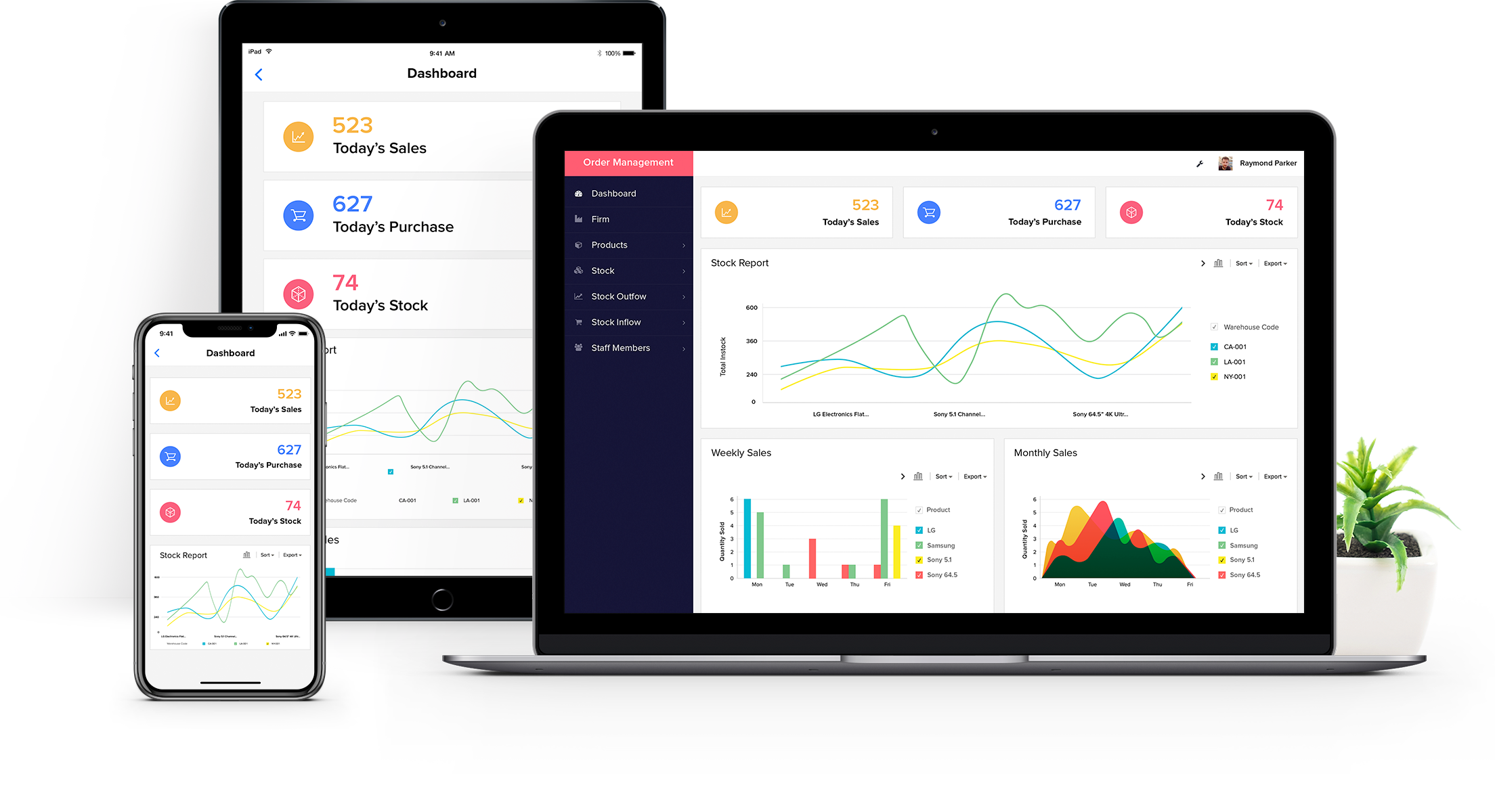
Zoho Creator is a low-code application development platform used across the GCC region to build custom operational systems: from procurement tools and client portals to compliance workflows and internal dashboards. This page answers the questions businesses and developers ask most often when evaluating or building within the platform.
Questions are organised into four sections. Navigate to the section relevant to your requirement.
Building Applications with Zoho Creator
The questions in this section cover what Zoho Creator can produce as a finished output, and how to get started with your first application build.
Can you build a website using Zoho Creator?
Yes, with an important qualification about what kind of website you are describing. Zoho Creator can function as the operational backbone of a web-accessible application, but it is not a content management system.
Zoho Creator allows you to create web-accessible pages, customer-facing portals, and public submission forms. These can be hosted independently under a custom domain or embedded within an existing corporate website. What you are building is a web application: a system that accepts data, executes logic, and responds to user interactions.
| What Zoho Creator handles well in this context |
| Client and supplier portals for submitting and tracking information. |
| Internal operational dashboards with data entry and approval workflows. |
| Embedded forms or tools integrated within an existing corporate website. |
| Public-facing submission forms connected to back-end processing logic. |
If your requirement is a marketing website with content pages, SEO landing pages, and editorial publishing, Zoho Sites is the appropriate tool within the Zoho ecosystem. Zoho Creator is best deployed where the value lies in the operational logic and data handling, not in the content layer.
| GCC Business Context |
| A property management company in Dubai built a tenant-facing portal on Zoho Creator to handle maintenance requests, payment confirmations, and document submissions. The portal operates under the company’s own domain, is accessible on mobile and desktop, and connects directly to their Zoho Books and Zoho CRM records. |
How do you create a to-do list application in Zoho Creator?
Building a task management application in Zoho Creator is one of the most effective starting points for understanding the platform. The process covers form design, record creation, list views, and basic workflow logic, all of which transfer directly to more complex operational builds.
Step-by-Step Setup
Follow these steps to build a functional task management application from a blank template.
- Create a new application: From the Zoho Creator dashboard, select Create Application and choose a blank template.
- Add a form: Insert a new form named Tasks. This form captures each individual task entry.
- Define fields: Add: Task Name (single-line text), Due Date (date), Status (dropdown: Pending, In Progress, Completed), and Priority (dropdown: High, Medium, Low).
- Set a default status: Set the Status field to Pending so new records are automatically categorised on creation.
- Create a list view: Add a tabular report with a filter to display only records where Status does not equal Completed, keeping the active task view clean.
- Add a completion action: Create a workflow trigger that updates the Status to Completed when a task is marked done.
Once this foundation is in place, it can be extended by adding an assigned user field, integrating with Zoho People for team-level assignment, or linking tasks to Zoho CRM records for client-specific activity tracking.
| GCC Business Context |
| An operations team at a logistics company in Sharjah used a Zoho Creator task application to manage daily shipment preparation checklists across three warehouses. Each checklist record links to a corresponding shipment in Zoho CRM, giving supervisors a consolidated view of pending and completed tasks across all locations. |
Developer and Technical Questions
The questions in this section cover scripting languages, client-side interactivity, and dimension retrieval within the Zoho Creator development environment.
How do you use JavaScript in Zoho Creator?
Zoho Creator uses Deluge as its primary server-side scripting language for workflows, functions, and field logic. JavaScript is supported in a more limited scope: it runs on the client side within pages and custom widgets.
Client-Side Scripting within Pages
The Pages feature in Zoho Creator supports embedded HTML components that can include JavaScript. This enables custom interactivity such as field calculations, conditional display behaviour, and integration with external JavaScript libraries within a page layout.
Custom Widgets
Zoho Creator supports widgets built entirely with HTML, CSS, and JavaScript. These can be embedded within application forms or report views. Communication between a widget and the rest of the Creator application is handled through the Zoho Creator Widget SDK.
| JavaScript vs Deluge: The Practical Distinction |
| JavaScript runs in the browser and governs UI behaviour and presentation. |
| Deluge runs on the server and handles data operations, workflow logic, integrations, and record management. |
| Most operational logic in Zoho Creator — including updating records, triggering notifications, and pulling data from other Zoho applications — is written in Deluge rather than JavaScript. |
For developers transitioning from a web background, the most effective approach is to learn Deluge first for all operational logic, and to use JavaScript only when the built-in Creator interface components cannot meet a specific UI requirement. Zoho’s developer documentation provides the Widget SDK reference for widget-to-application communication.
How do you get element height and page height in Zoho Creator?
These questions arise most often when building custom widgets or embedding content within Creator pages that need to respond to their container’s dimensions. Both are addressed through standard JavaScript DOM methods within a widget or HTML component.
Getting the Height of a Specific Element
Use getBoundingClientRect() to retrieve the rendered height of an element, including its padding:
const element = document.getElementById('yourElementId');
const height  = element.getBoundingClientRect().height;
If you need the height excluding padding as an integer value, use offsetHeight instead. getBoundingClientRect() returns a fractional value; offsetHeight rounds to the nearest integer.
Getting the Full Page Height
To retrieve the total document height, including content below the visible viewport, use scrollHeight:
const pageHeight = document.documentElement.scrollHeight;
If you need only the visible viewport height rather than the total document height, use window.innerHeight instead.
| Note for Zoho Creator Widget Development |
| When a custom widget needs to communicate its own rendered height back to the Creator application frame — to prevent conflicting scroll behaviour, for example — use the postMessage method from the Zoho Creator Widget SDK. The SDK documentation specifies the exact method reference for passing dimension values from a widget to its parent application. |
Data and Form Management
The questions in this section cover how to configure fields and validation rules that control the quality and integrity of data recorded in Zoho Creator applications.
How do you create an auto-updated number field in Zoho Creator?
An auto-updated number field generates or increments a value automatically when a record is created, covering use cases such as invoice references, purchase order numbers, and case identifiers. Zoho Creator provides two approaches depending on the complexity of the numbering logic required.
Approach 1: Auto Number Field Type
Zoho Creator includes a built-in Auto Number field that generates a sequential number for each new record. In the field configuration, you can define the starting value and add a prefix or suffix, producing references such as INV-001 and INV-002. The field cannot be edited by users and increments automatically on each submission. This is the correct approach for the majority of sequential reference requirements.
Approach 2: Calculated Numbers via Deluge Workflow
If the numbering logic is conditional — incorporating a date component, a project code, or a value derived from a related record — the number should be generated through a Deluge On Create workflow function rather than the built-in field type. The function calculates the reference at the point of record creation by retrieving the relevant variables and writing the result to a standard text or number field.
| GCC Business Context |
| A wholesale distribution company in Riyadh uses purchase order references in the format PO-2025-0412, where the year and sequence are generated at creation. Because the format incorporates the financial year, this was implemented as a Deluge workflow rather than the built-in Auto Number field. The function reads the current year and counts existing PO records to construct the reference on submission. |
How do you prevent duplicate entries in Zoho Creator?
Duplicate records are a data quality risk in any system where multiple users are entering information: supplier master data, client contacts, inventory items, or compliance submissions. Zoho Creator provides three mechanisms for preventing or detecting duplicates, depending on the structure of the uniqueness requirement.
Method 1: Unique Field Constraint
For fields where the value must be unique across all records — such as an email address, a trade licence number, a national ID, or a serial number — you can enable a unique constraint directly in the field properties. If a user attempts to submit a record with a value that already exists in that field, Zoho Creator will reject the submission and display a validation error. This is the simplest and most reliable method for single-field uniqueness.
Method 2: Composite Uniqueness via Deluge Validation
When the uniqueness requirement spans two or more fields in combination — for example, a supplier record that must be unique by company name and country together — a Deluge validation function is required. The function queries existing records using the zoho.creator.query method to check whether a matching combination exists before allowing the submission to proceed. If a match is found, the submission is rejected with an error message.
Method 3: Search-First Record Creation
An architectural alternative to post-submission validation is to require users to search for an existing record before creating a new one. This is implemented using a lookup or search field that queries existing records in real time as the user types. If a match is returned, the form populates from that record. If no match is found, a new record is created. This approach is particularly effective for client and supplier master data management, where a human review step reduces both duplicates and data entry errors before they occur.
| GCC Business Context |
| A procurement team at a construction contractor in Abu Dhabi manages over 300 active supplier records in Zoho Creator. To prevent duplicate registrations — particularly for vendors trading under multiple names — they implemented a search-first interface that queries the supplier database by trade licence number before allowing a new record to be created. The unique constraint on the trade licence field provides a secondary validation layer. |
Account and Settings
The question in this section covers account-level actions in Zoho Creator, specifically the distinction between removing an application and closing an account entirely.
How do you delete a Zoho Creator account?
Account deletion in Zoho Creator operates at two different levels. The process differs depending on whether you are removing a single application within your Creator account, or closing your Zoho account entirely.
Deleting a Specific Application
Within the Zoho Creator interface, navigate to the application you wish to remove. From the application settings, select the delete option and confirm. This action is permanent: all data, forms, reports, and workflow logic within the application will be deleted and cannot be recovered. Before proceeding, export all required data from the application’s report views in CSV format.
Closing Your Zoho Account Entirely
To close the full Zoho account — which removes access to all Zoho applications, including Creator — navigate to Zoho Accounts at accounts.zoho.com, access your profile settings, and locate the account closure option. The process requires identity confirmation and an acknowledgement that all data across all Zoho applications will be permanently deleted.
For organisations on a paid Zoho plan, account closure should be coordinated with your Zoho implementation partner or through Zoho support before proceeding, to confirm data export requirements, billing cessation, and any contractual obligations.
| Removing a user’s access is not the same as deleting an account. |
| If the requirement is to remove a team member’s access without deleting the application or account, this is managed through the user management section in Zoho Creator or Zoho Directory. Account deletion is a separate and irreversible action. |
| Implementing Zoho Creator for your business in the UAE, Saudi Arabia, or Bahrain? |
| Al Fahad IT Consulting designs and implements Zoho Creator applications for GCC organisations, from workflow tools and data management systems to multi-application integrations. If you are evaluating Creator for a specific operational requirement, we offer a 30-minute operational discussion to assess fit and outline a realistic implementation scope. |
| Contact us via the contact form or WhatsApp to arrange a discussion. |


