
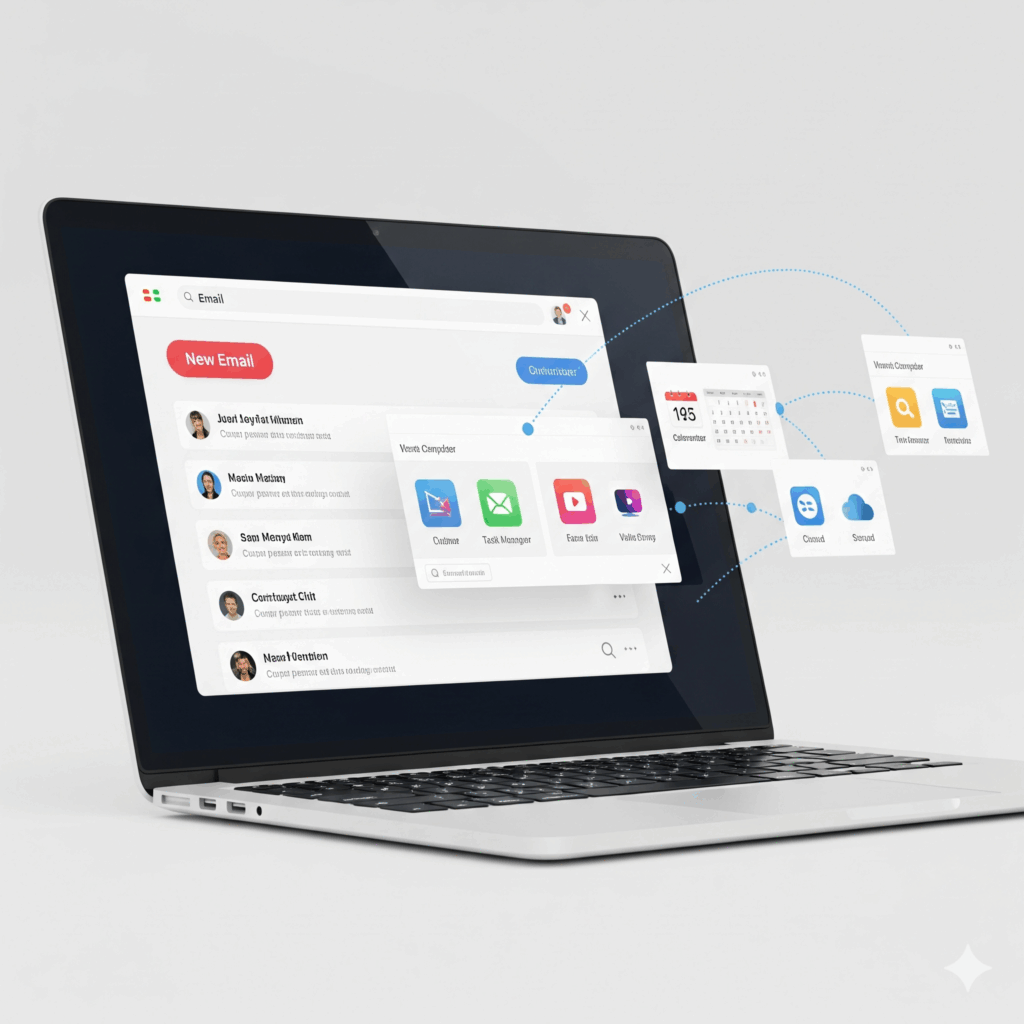
Zoho Mail is more than just an email service; it’s a powerful communication tool that can be tailored to fit your unique workflow and preferences. By customizing your Zoho Mail settings, you can enhance productivity, improve user experience, and ensure that your email environment aligns with your personal or organizational needs.
Zoho Mail is not only an email service but also a communication hub designed to adapt to your workflow. Personalizing your Zoho Mail desktop app or web interface is the key to unlocking greater productivity, reducing clutter, and creating an email environment that works for you. Whether you’re looking to minimize eye strain or automate your inbox organization, this comprehensive guide will walk you through all the customization options Zoho offers to businesses in the UAE, KSA, and Bahrain.
For those just starting, check out our Getting Started with Zoho Mail guide to learn how to set up Zoho Mail, create folders, and manage your inbox efficiently.
1. Selecting the Right Theme

Zoho Mail offers a variety of themes to suit different preferences and lighting conditions:
-
Light Theme: Ideal for well-lit environments, providing a clean and bright interface.
-
Dark Theme: Reduces eye strain in low-light settings and conserves battery life on OLED screens.
-
Vintage Theme: Offers a classic look with a nostalgic feel.
-
Night Mode: A system-controlled option that automatically switches to a darker interface in the evening.
To change your theme:
-
Click on the Zoho Mail settings icon in the top-right corner.
-
Navigate to System > Theme.
-
Choose from the available themes and apply your selection.
Note: You can also enable Night Mode for a darker interface, which is easier on the eyes during nighttime use.
2. Customizing Fonts and Appearance
Personalize the font style and size to enhance readability:
-
Go to Settings > General > System > Font Options.
-
Select your preferred Font Family (e.g., Arial, Lato, PT Sans, Zoho Puvi).
-
Choose the Font Size that suits you best (options range from Very Small to Very Large).
This customization ensures your email interface is comfortable for extended reading sessions.
3. Organizing Your Inbox with Folders and Labels
Efficient email management is crucial for productivity. Zoho Mail allows you to:
-
Create Multi-Level Folders: Organize emails into a hierarchical structure for better navigation.
-
Apply Labels: Use color-coded labels to categorize emails by project, priority, or any other criteria.
-
Set Up Filters: Automatically sort incoming emails into specific folders or apply labels based on defined rules.
To set up folders and labels:
-
Click on the Settings icon.
-
Navigate to Folders and Labels.
-
Create new folders or labels and define rules as needed.
This feature is particularly useful for managing large volumes of emails, especially when running a Zoho Mail campaign or handling project-based communication.
4. Configuring the Reading Pane
The Reading Pane allows you to preview emails without opening them in a new window:
-
Click on the Settings icon.
-
Go to Mail View Options > Reading Pane.
-
Choose your preferred reading pane layout:
-
Vertical Preview: Displays the email on the right side of your inbox.
-
Horizontal Preview: Shows the email below your inbox.
-
No Preview: Disables the reading pane.
-
You can adjust the size of the preview pane by dragging its edges.
5. Customizing the Email Composer Layout
Tailor the email composition interface to your liking:
-
Click on the Settings icon.
-
Navigate to Mail > Compose Customization.
-
Rearrange the sections of the email composer (Top Bar, Subject, Toolbar, Content Area, Attachment Region) by dragging and dropping them.
This flexibility helps streamline your email composition process. For professional branding, you can also learn how to add a signature in Zoho Mail, ensuring every email reflects your identity or business image.
6. Enabling and Customizing Notifications
Stay informed without being overwhelmed:
-
Go to Settings > Notifications.
-
Choose which notifications to enable (e.g., new emails, calendar events, task reminders).
-
Select your preferred notification method (desktop alerts, mobile push notifications).
For advanced productivity strategies, see Boosting Email Productivity with Zoho Mail.
7. Integrating Zoho Apps for Enhanced Productivity
Zoho Mail seamlessly integrates with other Zoho applications:
-
Zoho Calendar: Schedule and manage events directly from your inbox.
-
Zoho Tasks: Create and track tasks without leaving your email.
-
Zoho Notes: Jot down quick notes and access them anytime.
-
Zoho Bookmarks: Save and organize your favorite links.
-
Zoho CRM: Access customer details, leads, and deals linked to your conversations.
-
Zoho Projects & Zoho Sprints: Convert emails into tasks or track project updates without switching apps.
-
Zoho WorkDrive & Docs: Attach, save, and collaborate on documents directly from your mailbox.
-
Zoho Recruit: Manage candidate applications and hiring workflows right from email.
-
Zoho Meeting & Zoho Assist: Launch meetings or remote sessions from within Zoho Mail.
-
Zoho Vault: Securely access and manage stored passwords through your inbox.
-
Zoho Sign: Send or request legally binding e-signatures directly from Zoho Mail.
To integrate these apps:
Click on the Zoho Apps icon in the top-right corner.
Select the desired application to open it within Zoho Mail.
These integrations centralize your workflow and reduce the need to switch between applications.
Third-Party Productivity & Collaboration Integrations
Zoho Mail also connects with popular third-party apps that businesses rely on:
-
Google Drive, OneDrive, Dropbox, Box, Egnyte, Evernote: Store, attach, and share files straight from your inbox.
-
Microsoft Teams & Slack: Get notifications, share emails, and collaborate with teammates instantly.
-
Zoom & Webex: Schedule or join video calls without leaving Zoho Mail.
-
Giphy: Insert fun GIFs to liven up your emails.
To integrate these apps:
Open the Marketplace inside Zoho Mail settings.
Choose the app you want and follow the one-click installation process.
These integrations make collaboration effortless, whether your team is remote or in-office.
CRM & Support Tool Integrations
For sales and customer service teams, Zoho Mail integrates with:
-
Salesforce, HubSpot, Pipedrive, Insightly, Highrise: Access client information and sales pipelines from your inbox.
-
Zoho Desk, Zendesk, ServiceDesk Plus: Convert customer emails into support tickets and resolve issues faster.
To integrate these apps:
Navigate to the Zoho Mail Marketplace, search for your CRM or Helpdesk app, and enable it.
These integrations align sales, service, and communication in one place.
E-Signature & Contract Integrations
Businesses handling contracts and legal documents can use:
-
Zoho Sign: Request and track signatures instantly.
-
Adobe Sign & DocuSign: Send agreements for e-signature without leaving your email.
To integrate these apps:
Enable the e-signature extension from Zoho Mail Marketplace.
These integrations speed up approval cycles and reduce paperwork delays.
Project & Task Management Integrations
Turn emails into action items with:
-
Trello & Asana: Create and manage tasks directly from Zoho Mail.
-
Jira: Track issues and development tickets without switching apps.
-
Todoist: Manage personal and team tasks from within your inbox.
To integrate these apps:
Enable them from the Marketplace or via Zapier/Zoho Flow.
These integrations ensure no email gets lost and every task is actionable.
Workflow Automation Integrations
Automate repetitive tasks by connecting Zoho Mail with:
-
Zapier & Make (Integromat): Link Zoho Mail to 1,000+ apps like Notion, Stripe, Mailchimp, and ClickUp.
-
Zoho Flow: Automate processes like parsing receipts, routing attachments, or syncing leads with CRMs.
-
Microsoft Power Automate & IFTTT: Build customized workflows across apps.
To integrate these apps:
Use Zoho Flow inside Zoho One or connect Zoho Mail through Zapier/Make dashboards.
These integrations save hours by reducing manual tasks.
8. Utilizing Slash Commands for Quick Actions
Zoho Mail supports slash commands for rapid access to features:
-
/Tasks: View and manage your tasks.
-
/Calendar: Access your calendar events.
-
/Notes: Open your notes.
Type the command in the search bar and press Enter to execute.
9. Managing Multiple Email Accounts
If you handle multiple accounts, Zoho Mail allows you to:
-
Add Additional Accounts: Manage multiple email addresses within a single interface.
-
Switch Between Accounts: Easily toggle without logging out.
To add an account:
-
Click on your profile picture in the top-right corner.
-
Select Add Account and follow the prompts.
Managing multiple accounts is even more efficient with the Zoho Mail desktop version, giving you quick access without relying only on the browser.
10. Customizing Email Templates
Create and use templates for consistent communication:
-
Navigate to the Templates folder.
-
Click Create Template.
-
Draft your email, format it, and save it under a category.
Templates save time and ensure uniformity. Pair them with professional signatures for maximum impact, as discussed in Email Signature Best Practices.
Why Choose Al Fahad for Zoho Mail Implementation
Al Fahad IT Consulting is a Premium Zoho Partner with 10+ years of expertise, delivering seamless Zoho Mail implementation across the UAE, KSA, and Bahrain. Our certified Zoho consultation specialists have successfully served top industries, including real estate, healthcare, shipping, the service industry, and construction.
Why businesses trust us:
-
Decade of Zoho mastery ensuring reliable, tailored deployments.
-
Dedicated experts for implementation, integration, and 24/7 support.
-
Regional insight for fast, compliant, and efficient setups.
-
Personalized solutions aligning Zoho Mail with your workflow and brand.
Choose Al Fahad for a streamlined, high-impact Zoho Mail experience that boosts productivity and simplifies collaboration.
Final Thoughts
When comparing services, many organizations evaluate G Suite vs Zoho Mail to determine the best fit. With flexible Zoho Mail charges, easy Zoho Mail configuration, advanced features in the Zoho Mail desktop app, and scalable Zoho Mail premium options, Zoho proves to be a strong alternative for both individuals and enterprises.


Leave a Reply